
1 透明展柜中的图片错位/与背景不对齐
正确使用代码上传了图片,为什么我的主页看起来还是跟别人的不太一样?
(...关于什么是透明展柜和上传代码,见此文)
情况1 图片未能铺满展柜
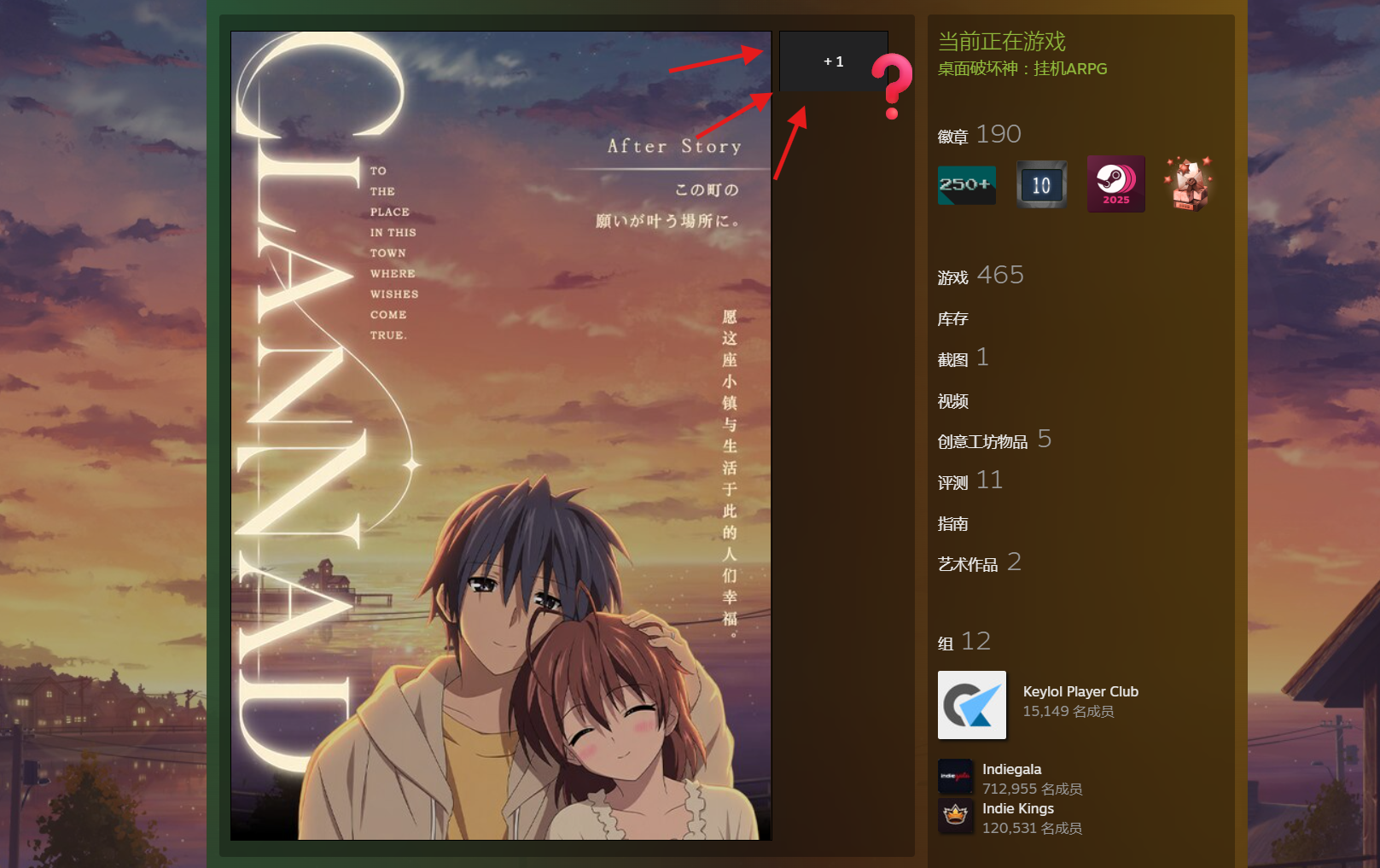
这是因为使用了 艺术作品展柜而不是 精选艺术作品展柜。后者仅展示一张图片,可以避免上图的问题。
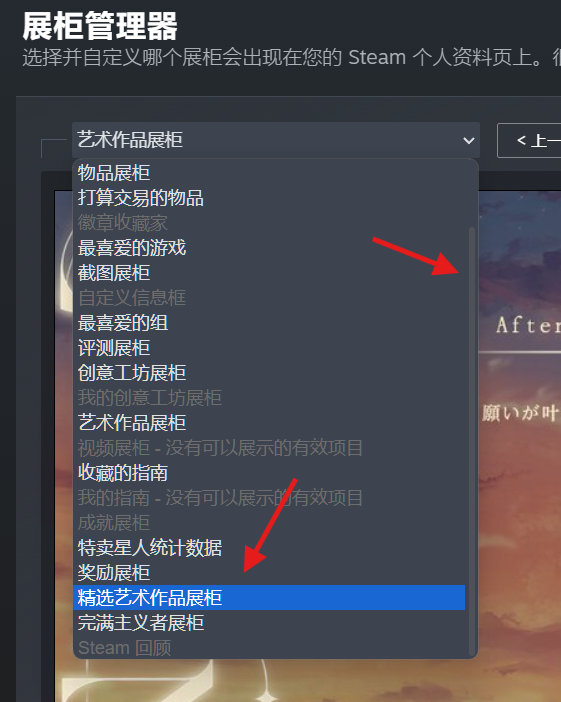
为什么我没有“精选艺术作品展柜”?
展柜选框里下滑,可以在最下面找到“精选艺术作品展柜”。
情况2 展柜图片与背景错位
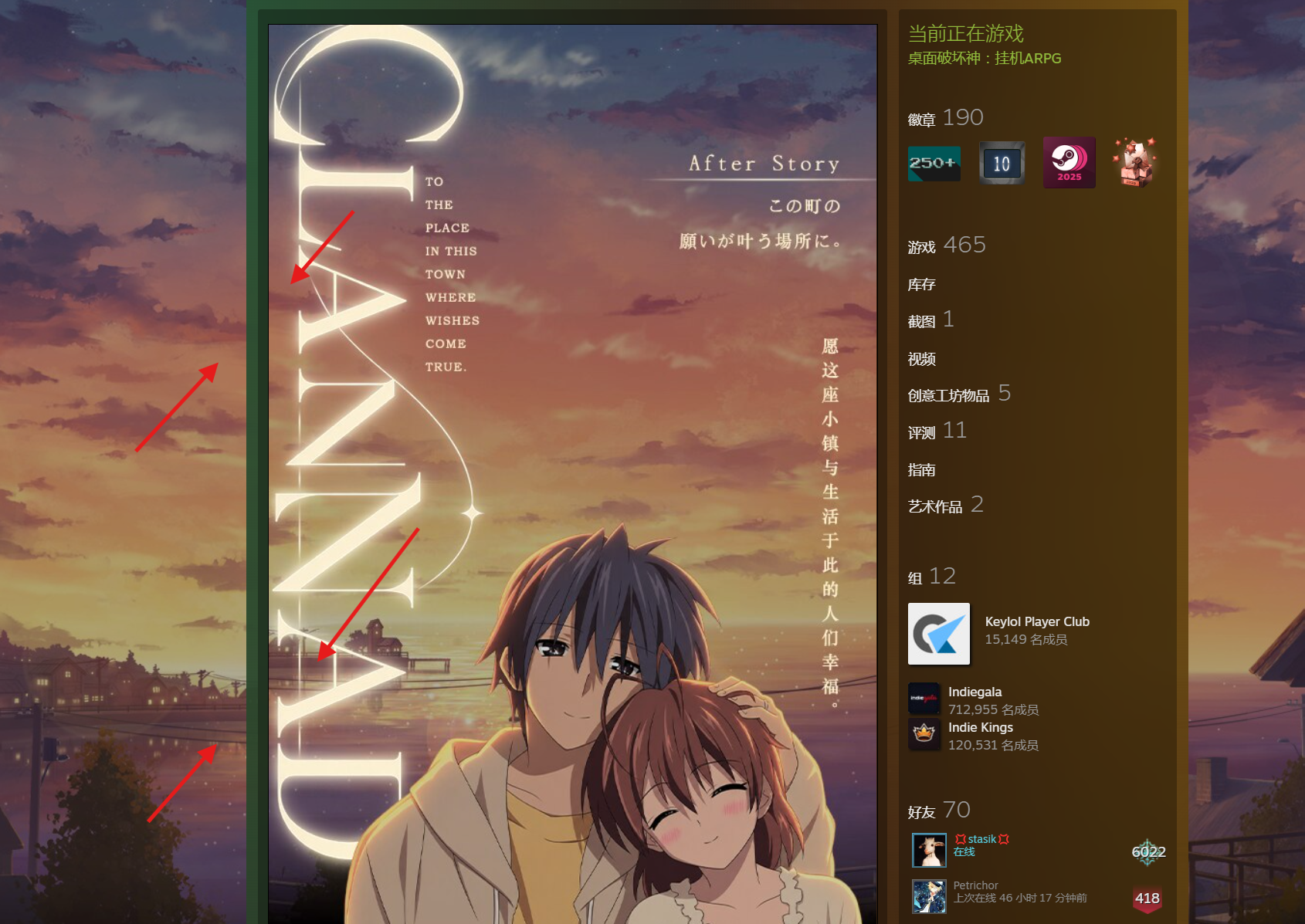
图片铺满了整个展柜,但依然跟背景图错位了。
这是因为 个人背景资料没有选择 原始大小。
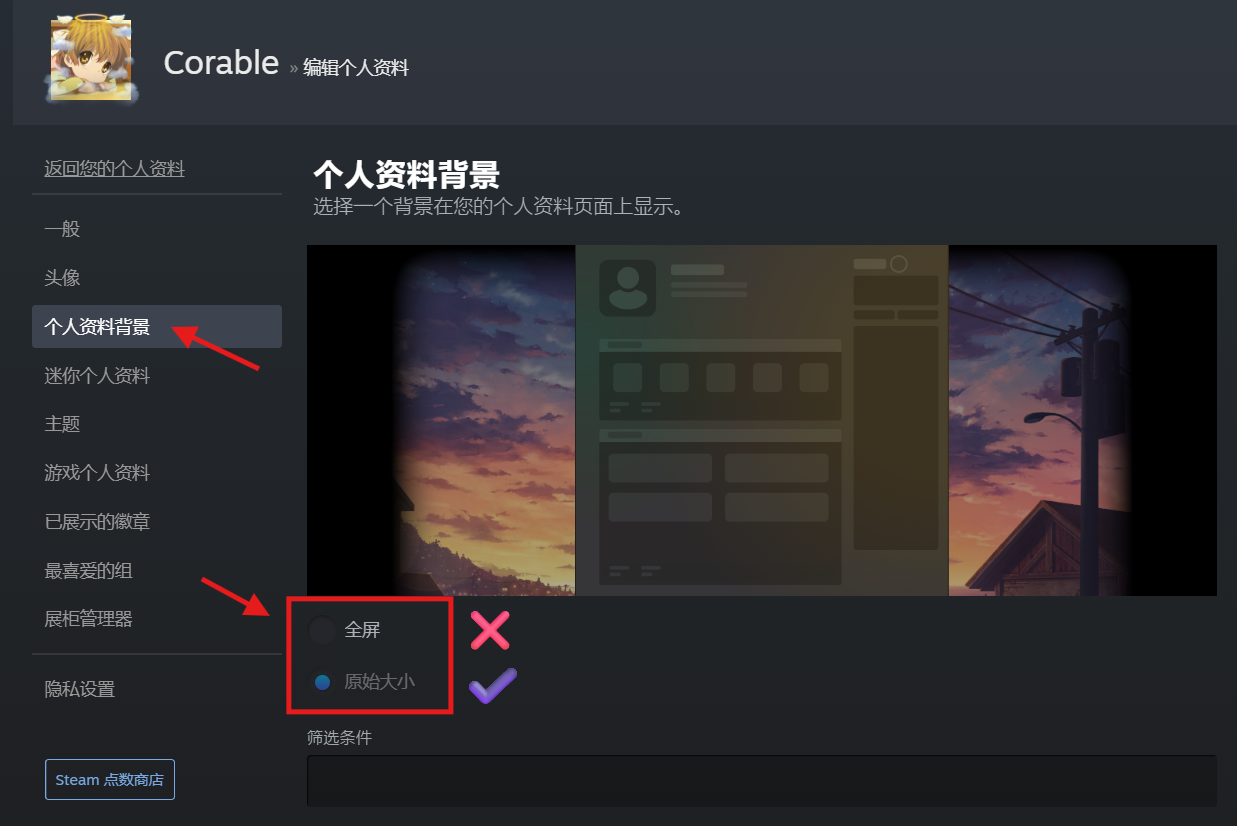
选择 全屏的话,背景会自适应浏览器窗口大小,因此会出现与预设展柜图不对齐的情况。
2 预览点数商店里的透明主题(“游戏个人资料”系列)
Steam里被称作“游戏个人资料”的一系列游戏主题,可以做到主页组件高度透明,跟透明展柜非常登对。
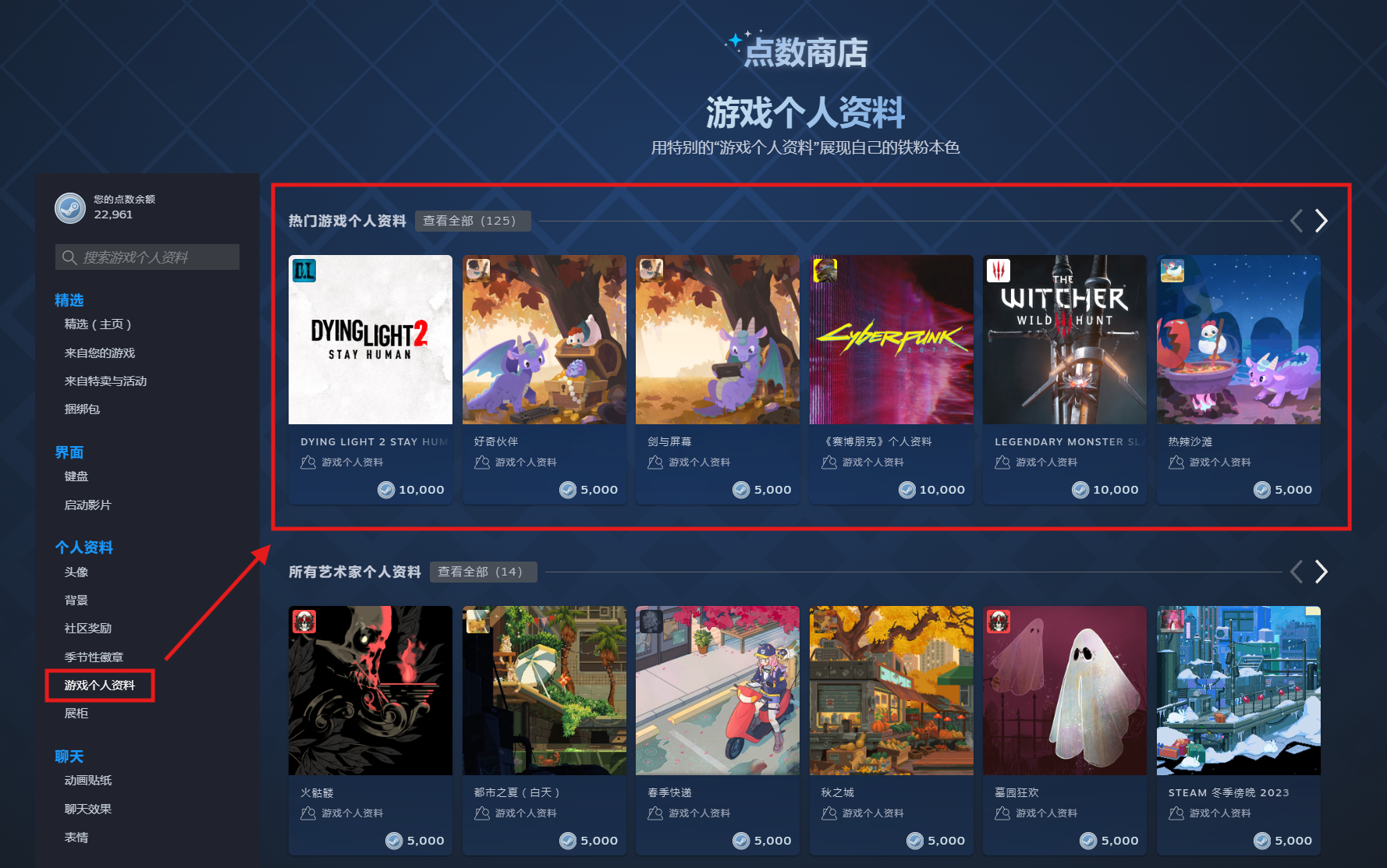
但是怎么选呢?成套购买,动辄花费5000、10000点数,余额充裕的可以手快全拿了,但只够买一两套的穷哥们该怎么办呢?
Steam是提供了主题的预览链接的,不过预览的是用上全套装扮时的样子,比如《哈迪斯》的套装:
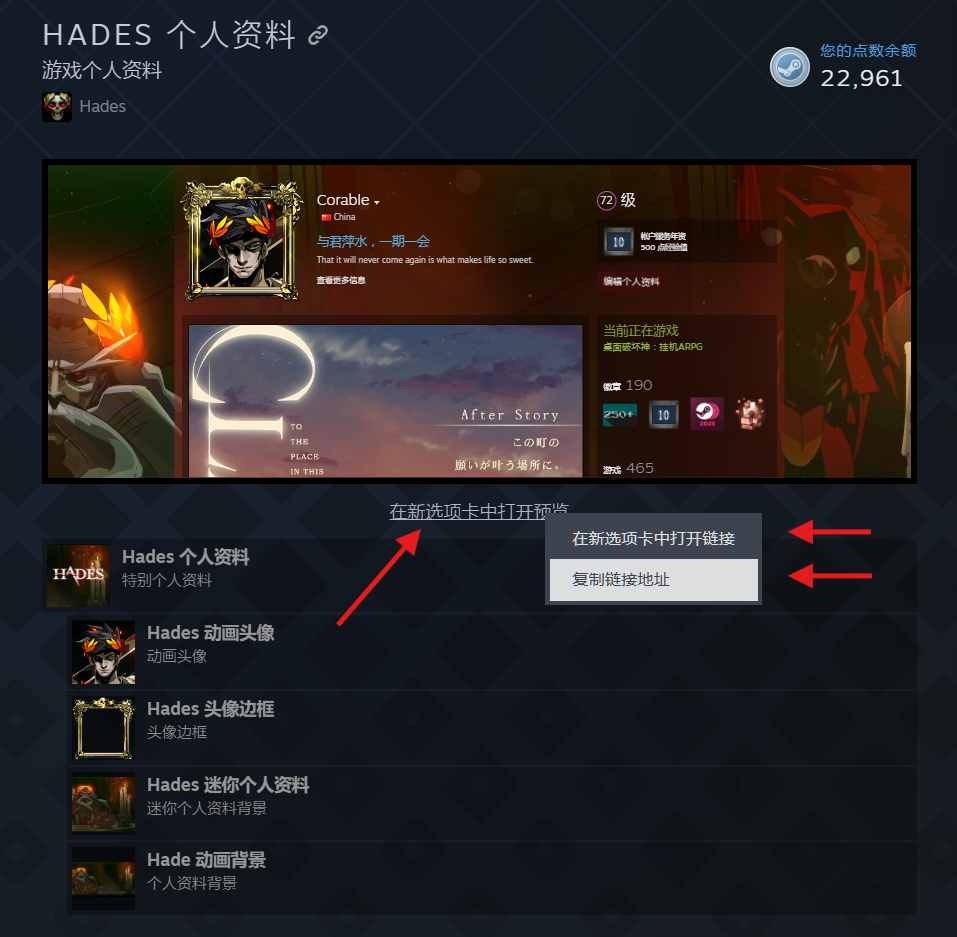
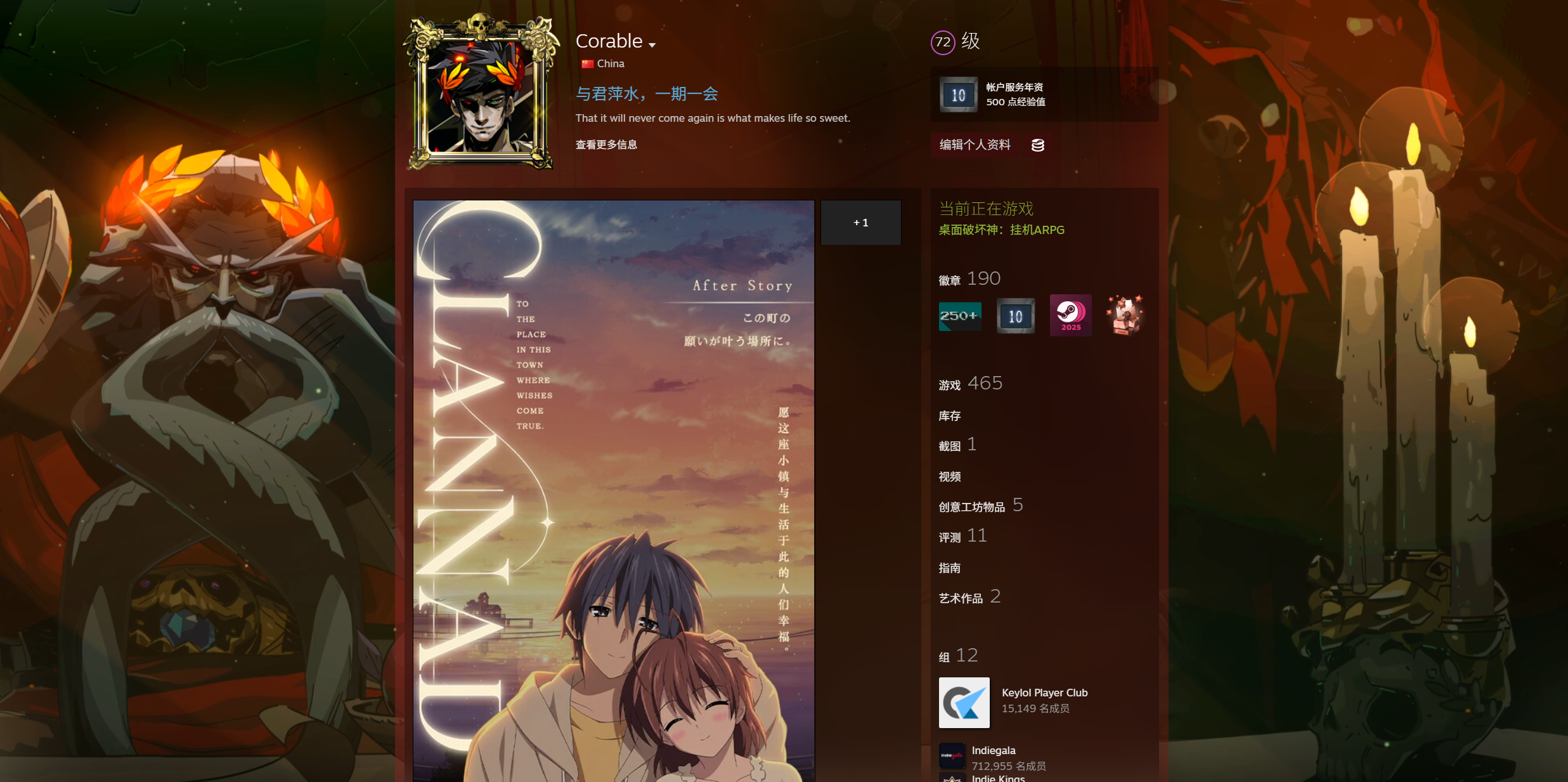
如果想预览只应用主题透明功能的效果,可以藉由替换网页元素的办法实现。
用浏览器打开主题预览链接,按下F12,找到控制台,
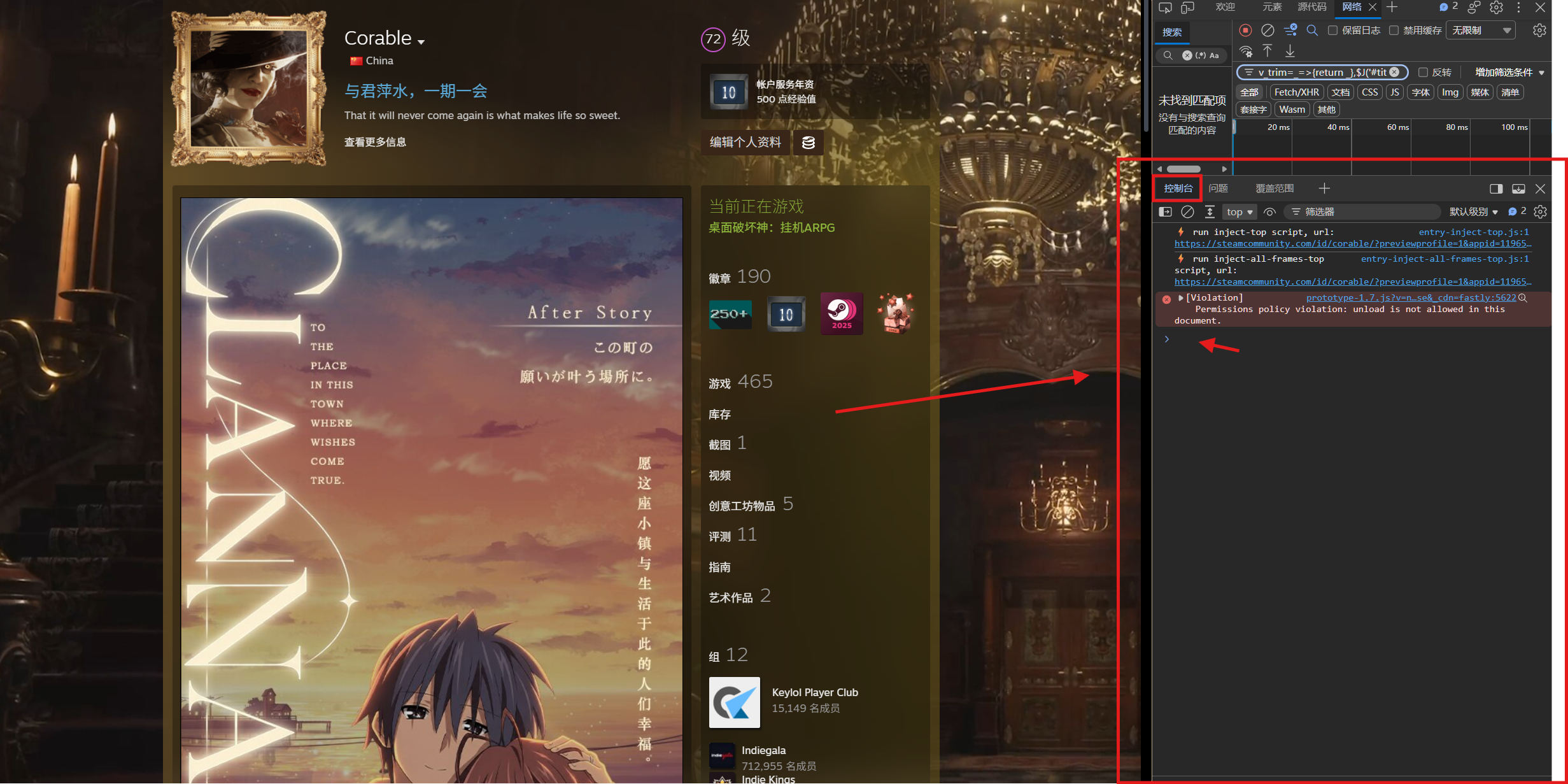
在其中粘贴如下代码(由伟大的GPT大人友情提供):
>>>点我折叠/展开,右侧可一键Copy<<<
(async () => {
  const tag = '[Steam Preview]';
  const warn = message => console.warn(tag, message);
  const selector = '.no_header.profile_page';

  if (new URLSearchParams(location.search).get('previewprofile') !== '1') {
    return warn('请在游戏个人资料预览页运行');
  }

  try {
    // 获取一次正式个人资料 HTML
    const response = await fetch(location.pathname, {
      credentials: 'same-origin',
      cache: 'no-store'
    });

    if (!response.ok) {
      throw new Error(`读取个人资料失败:HTTP ${response.status}`);
    }

    const source = new DOMParser().parseFromString(
      await response.text(), 'text/html'
    );

    const originals = [...source.querySelectorAll(selector)];
    const targets = [...document.querySelectorAll(selector)];

    if (!originals.length || !targets.length) {
      throw new Error('个人资料结构可能已变化');
    }

    // 识别动态背景
    const animated = originals.map(page => ({
      page,
      layer: page.querySelector('.profile_animated_background')
    })).find(({ layer }) =>
      layer?.querySelector('video[src], video source[src]')
    );

    // 识别静态背景
    const staticBg = originals.map(page => ({
      page,
      image: page.style.backgroundImage
    })).find(({ image }) =>
      image && image !== 'none' && image.includes('url(')
    );

    const mode = animated ? 'dynamic'
      : staticBg ? 'static'
      : originals.some(page =>
          page.classList.contains('has_profile_background') ||
          page.querySelector('.profile_animated_background')
        ) ? 'unknown' : 'none';

    const originalPage =
      animated?.page || staticBg?.page || originals[0];

    const originalAvatar = source.querySelector(
      '.profile_header .playerAvatarAutoSizeInner'
    );

    const targetAvatars = [...document.querySelectorAll(
      '.profile_header .playerAvatarAutoSizeInner'
    )];

    const videos = [];

    // 避免重复执行产生多个观察器
    window.__steamProfilePreviewIO?.disconnect();
    window.__steamProfilePreviewIO = null;

    if (mode !== 'unknown') {
      for (const page of targets) {
        // 只清理目标个人资料中的旧背景
        page.querySelectorAll('.profile_animated_background')
          .forEach(layer => {
            layer.querySelectorAll('video')
              .forEach(video => video.pause());
            layer.remove();
          });

        page.classList.toggle(
          'has_profile_background', mode !== 'none'
        );

        page.classList.toggle(
          'full_width_background',
          mode !== 'none' &&
          originalPage.classList.contains('full_width_background')
        );

        if (mode === 'static') {
          // 保留来源页面实际指定的背景属性
          for (const prop of [
            'background-image',
            'background-position',
            'background-size',
            'background-repeat',
            'background-attachment'
          ]) {
            const value = originalPage.style.getPropertyValue(prop);

            if (value) {
              page.style.setProperty(prop, value, 'important');
            } else {
              page.style.removeProperty(prop);
            }
          }
        } else {
          page.style.setProperty(
            'background-image', 'none', 'important'
          );

          for (const prop of [
            'background-position',
            'background-size',
            'background-repeat',
            'background-attachment'
          ]) {
            page.style.removeProperty(prop);
          }

          if (mode === 'dynamic') {
            const layer = document.importNode(animated.layer, true);

            for (const video of layer.querySelectorAll('video')) {
              // 延迟加载,避免隐藏副本持续占用资源
              video.removeAttribute('autoplay');
              video.preload = 'none';
              video.muted = true;
              video.loop = true;
              video.playsInline = true;
              videos.push(video);
            }

            page.prepend(layer);
          }
        }
      }
    } else {
      warn('未识别的背景结构,保留原预览背景');
    }

    // 恢复头像和头像框
    if (originalAvatar && targetAvatars.length) {
      for (const avatar of targetAvatars) {
        avatar.replaceChildren(
          ...[...originalAvatar.childNodes].map(
            node => document.importNode(node, true)
          )
        );

        // 额外兼容可能使用视频的头像
        for (const video of avatar.querySelectorAll('video')) {
          video.removeAttribute('autoplay');
          video.preload = 'none';
          video.muted = true;
          videos.push(video);
        }
      }
    } else {
      warn('头像结构未找到,跳过头像替换');
    }

    // 按可见性管理视频
    const play = video => {
      try {
        video.play()?.catch?.(() => {});
      } catch {}
    };

    if (videos.length) {
      if ('IntersectionObserver' in window) {
        const observer = new IntersectionObserver(entries => {
          for (const { target: video, isIntersecting } of entries) {
            if (isIntersecting) play(video);
            else video.pause();
          }
        }, { threshold: 0.01 });

        videos.forEach(video => observer.observe(video));
        window.__steamProfilePreviewIO = observer;
      } else {
        videos
          .filter(video => video.getClientRects().length)
          .forEach(play);
      }
    }

    console.info(
      tag,
      `完成:背景 ${mode};头像 ${
        originalAvatar && targetAvatars.length
          ? '已恢复' : '未修改'
      }。`
    );
  } catch (error) {
    warn(error?.message || String(error));
  }
})();
并回车。如此即可一键将预览页的元素替换成自己的原装扮:
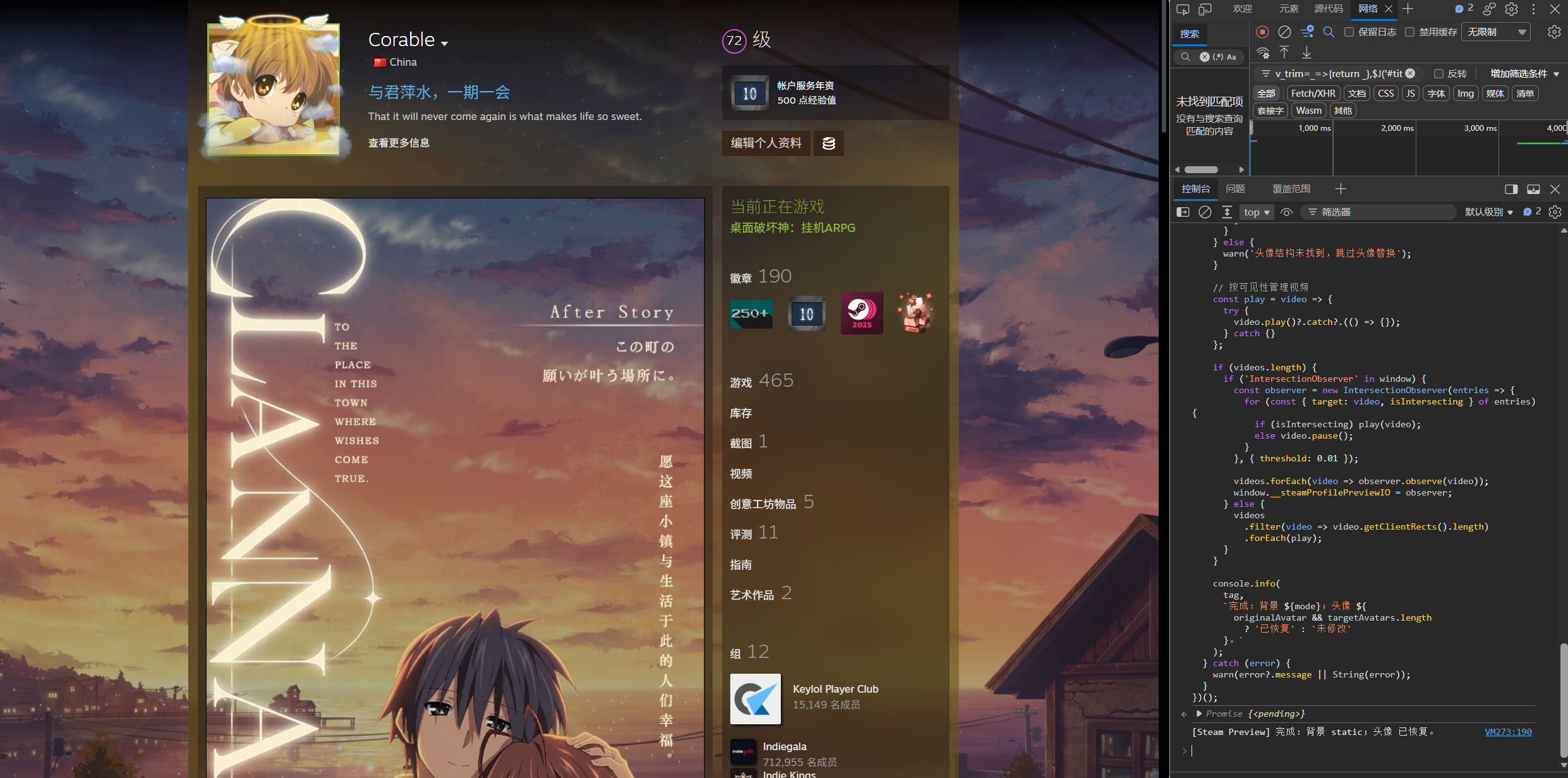
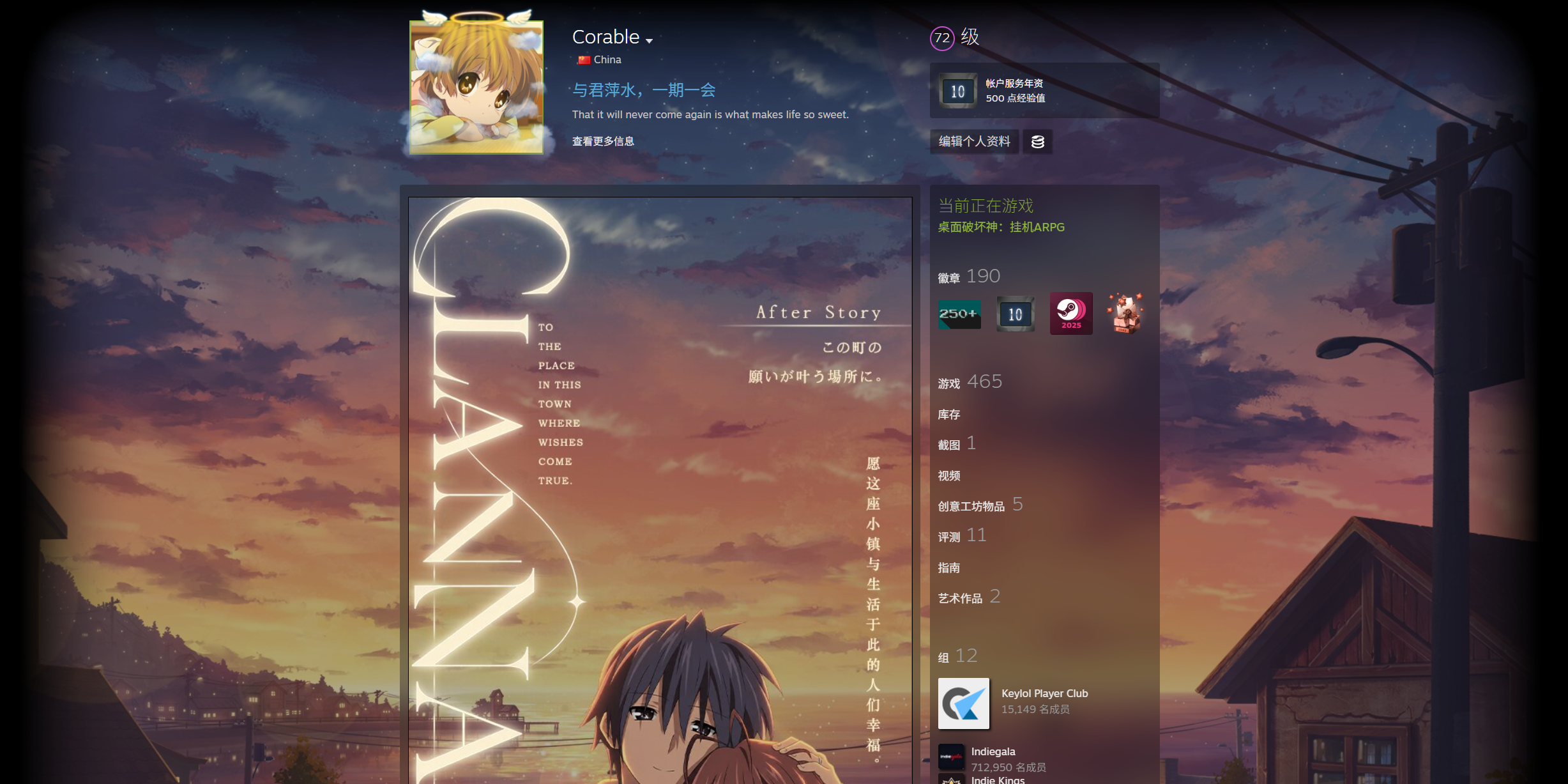
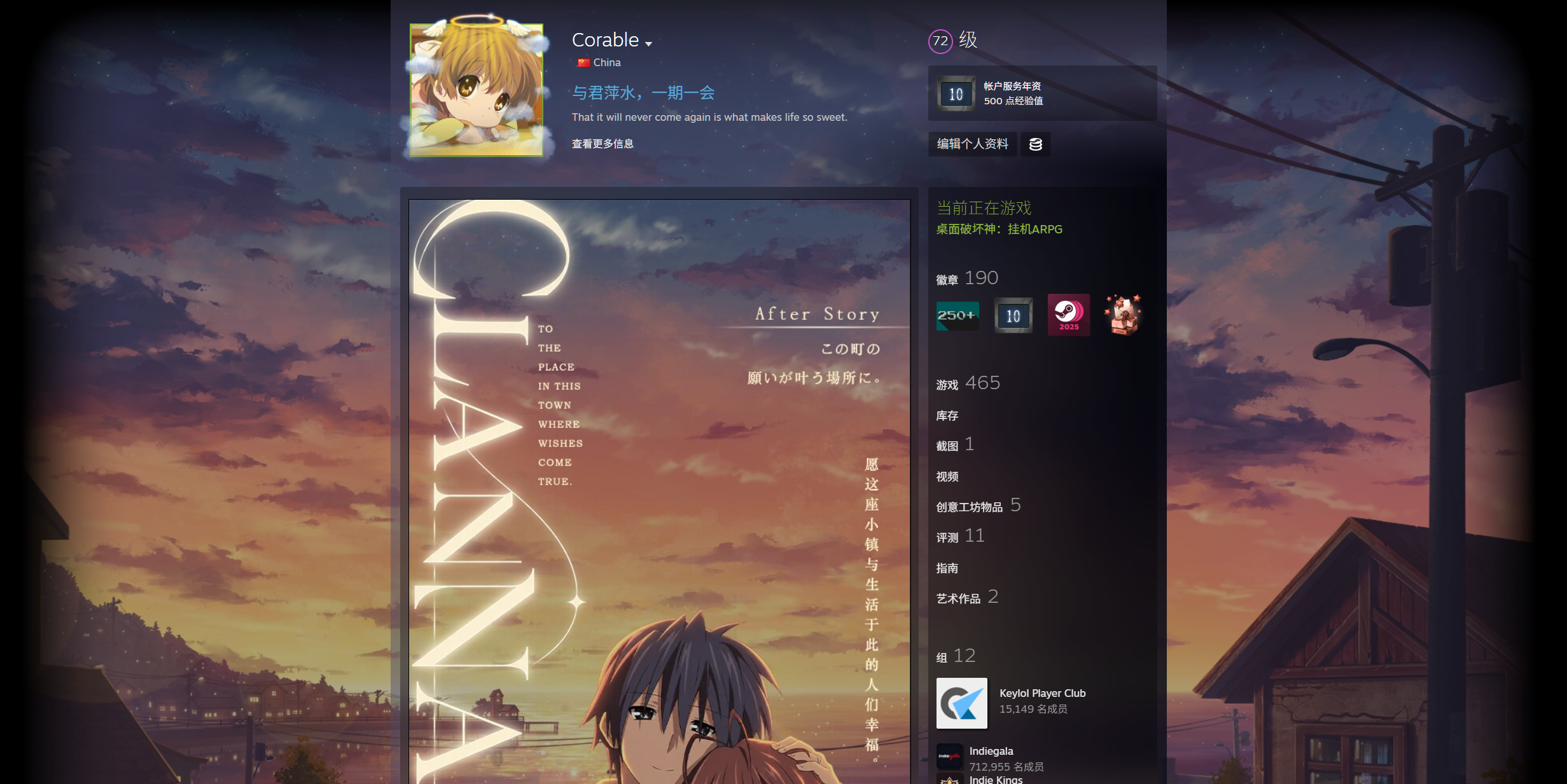
同时也能看到透明主题的效果。
对于不同预览链接,重复上述操作即可。
《消逝的光芒2》:
《恶魔实验室》:
这样就能很方便地在购前预览整体效果,免得点数花错地方啦::Cat_gif:Pat-pat::
换上 游戏个人资料会把背景、头像框都换掉,别忘了手动换回来::Cat_gif:Out_like_a_light::
推荐一首歌:
|´・ω・) ノ未经允许,不能随便转载哦~